How to use the Asset Manager
Operandio’s Asset Manager allows you to create and manage assets directly within the platform. This module is available to users who have Asset Manager included in their plan. If you’d like to add this module, reach out to your account manager for assistance.
The Asset Manager allows you to link assets to other areas of the platform, including jobs and actions. This keeps all asset-related information in one place, making it easy for staff to find, update, and manage assets within Operandio.
What this guide covers
This guide walks you through:
You may also be interested in:
- How to use an asset in a job
- How to raise an action and assign an asset to it
Asset types vs assets
Asset types define the structure and fields for a group of similar assets. They determine what information needs to be recorded for each asset of that type.
- Example: Go-Kart Model X
- Fields: Serial number, in-service status, registration number
- All go-karts of this model will use the same fields
Assets are individual items created under an asset type. Each asset stores its own information but follows the structure defined by the asset type.
- Example:
- Asset type: Go-Kart Model X
- Assets: Go-Kart #1, Go-Kart #2, Go-Kart #3
Creating an Asset
Assets are individual items created under an asset type. Each asset stores its own information but follows the structure defined by the asset type.
Example:
- Asset type: Go-Kart Model X
- Assets: Go-Kart #1, Go-Kart #2, Go-Kart #3
To create an asset:
-
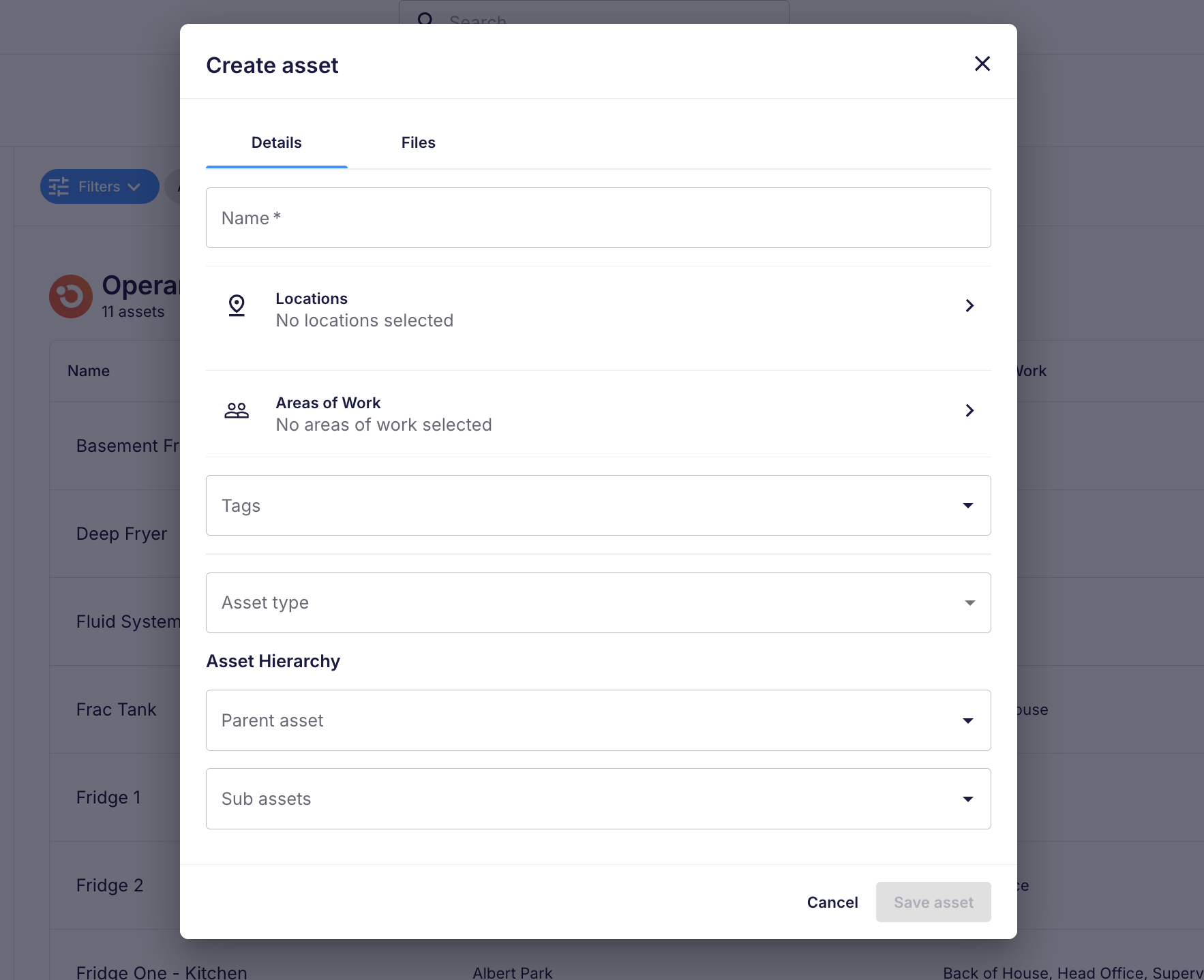
Navigate to Asset Manager and select Create Asset
Fill in the asset details:
- Name: What is the asset? (e.g., Go-Kart #1)
- Location: Assign the asset to the relevant venue or location. Only employees at this location will see it.
- Area of work: Assign the asset to a team or department (e.g., kitchen staff, BOH, or maintenance team).
- Tags: Assign tags based on type or category (e.g., food safety, maintenance). Tags make reporting easier.
-
Asset type: Link the asset to the asset type you created. Depending on the asset type, you may need to fill out additional fields.
Parent and sub-assets (optional): Select from assets that are already created and available at your location to create a hierarchy:
-
Parent asset: An existing asset that contains other assets for organizational purposes.
Example: Go-Kart Fleet (represents the full fleet of go-karts)
-
Sub-assets: Existing assets that belong to a parent asset.
Example: Go-Kart #1, Go-Kart #2, Go-Kart #3
-
- Click Save
Creating an Asset Type
Asset types define the structure and fields for a group of similar assets. They tell Operandio what information to collect for each asset of that type.
Example: Go-Kart Model X
- Fields: Serial number, in-service status, registration number
- All go-karts of this model will use the same fields
To create an asset type:
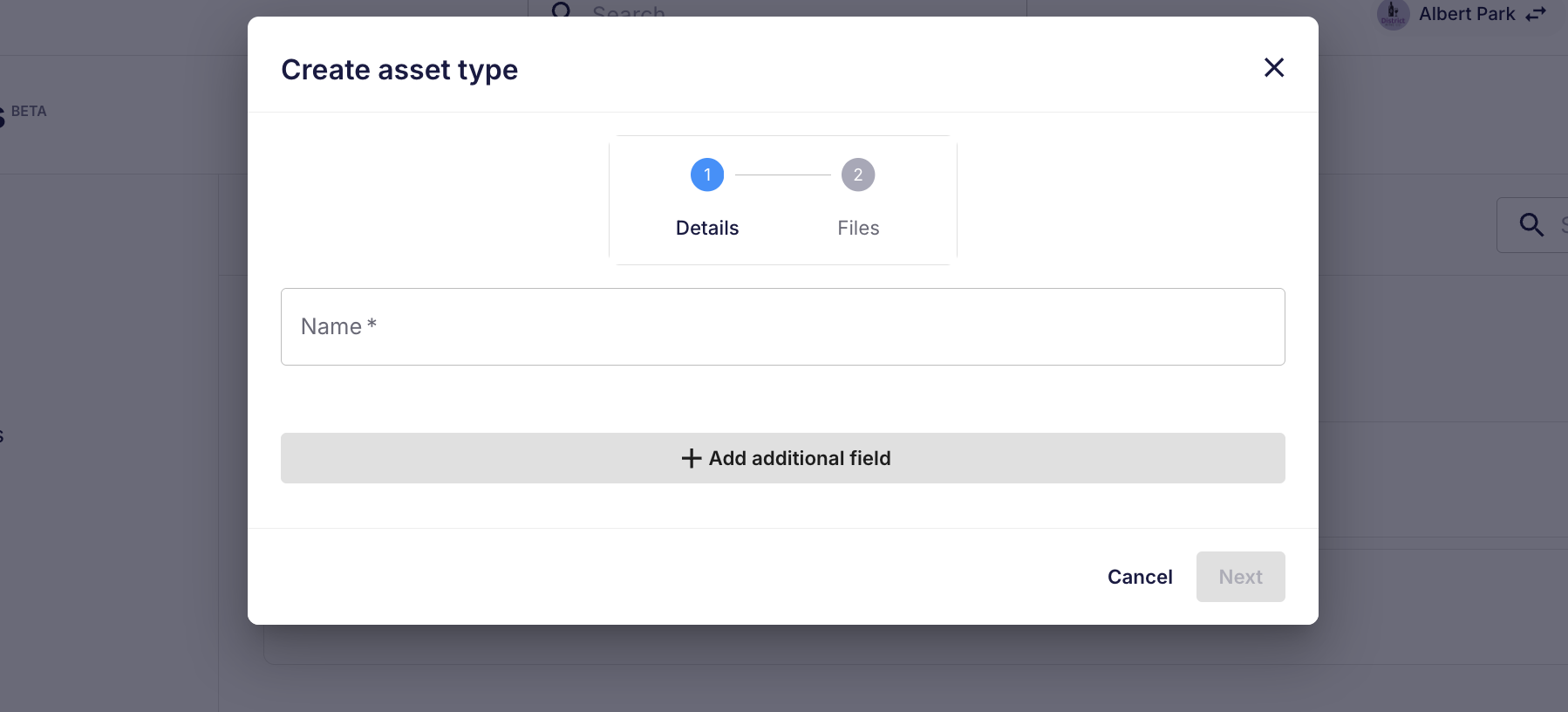
- Navigate to Asset Manager and select Create Asset Type
- Give your asset type a name (e.g., Go-Kart Model X)
- Add additional fields if needed:
- Serial number (already available by default)
- Text Field (e.g., Registration number)
- True/False Field (e.g., In Service)
- Optional Field toggles:
- Required: Must be completed before the asset can be saved (e.g., Serial number is required for every go-kart)
- Default value: Automatically fills for new assets (e.g., In Service defaults to True)
Upload files (optional):
- Equipment manuals
- Handbooks
- Maintenance guides
By using Operandio’s Asset Manager, all your equipment, vehicles, and tools can be tracked, maintained, and linked across jobs and actions in a centralized platform. Staff can quickly access the information they need, keeping operations organized and efficient.