Upload your accreditations and certificates
Last updated: October 5, 2026
When your employer requests an accreditation, open Your Accreditations from your dashboard, attach a photo or file of the certificate, and set its expiry date. Both are needed: if the expiry date is missing, the upload will not complete and the accreditation will keep showing as needing attention. Once both are added, the request clears from your dashboard and your employer can view the certificate.
Upload an accreditation
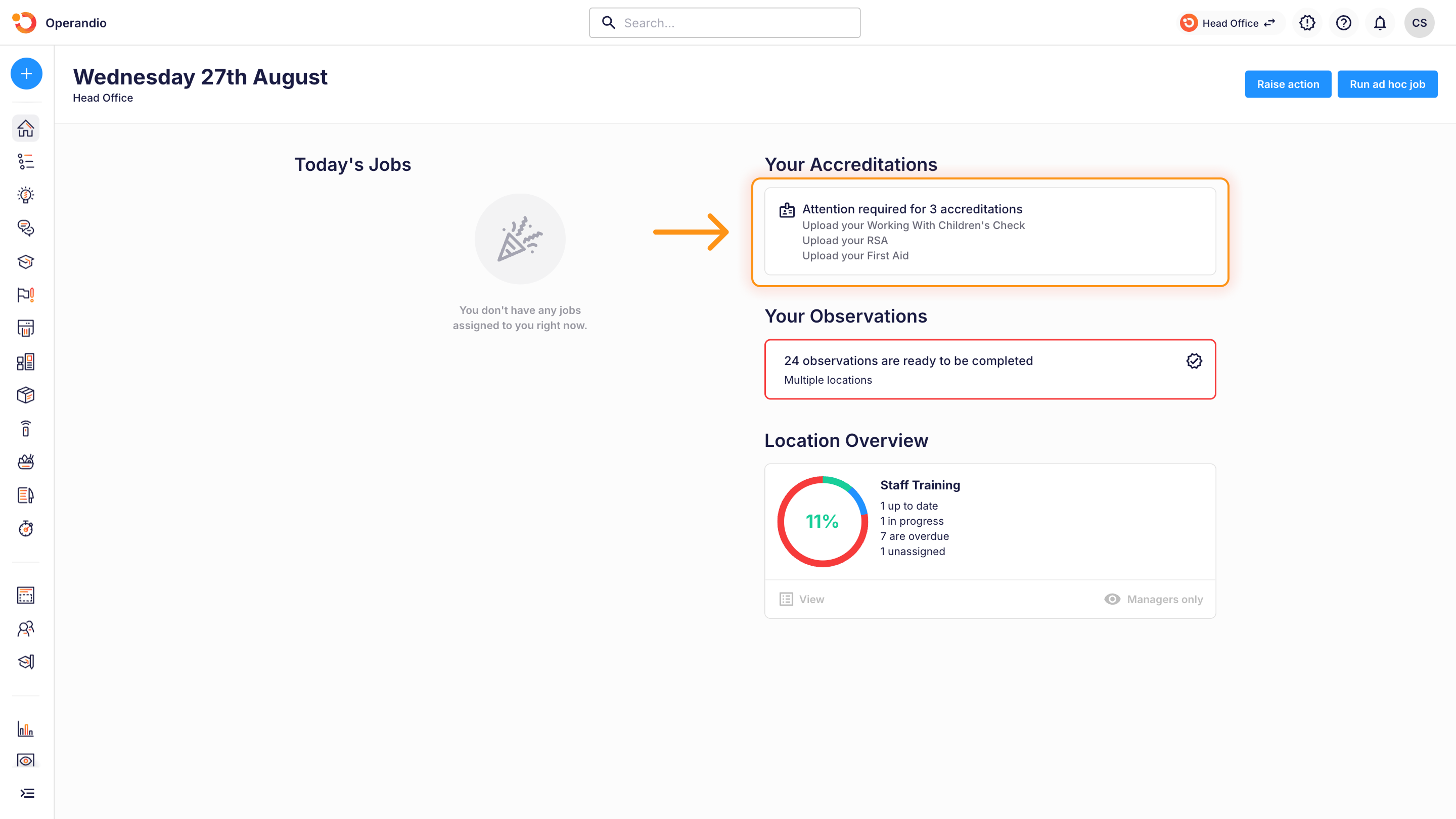
On your dashboard, select Your Accreditations. You can also get there by clicking your profile in the top-right corner, selecting Settings, then Your Accreditations.
Find the accreditation that needs your attention.
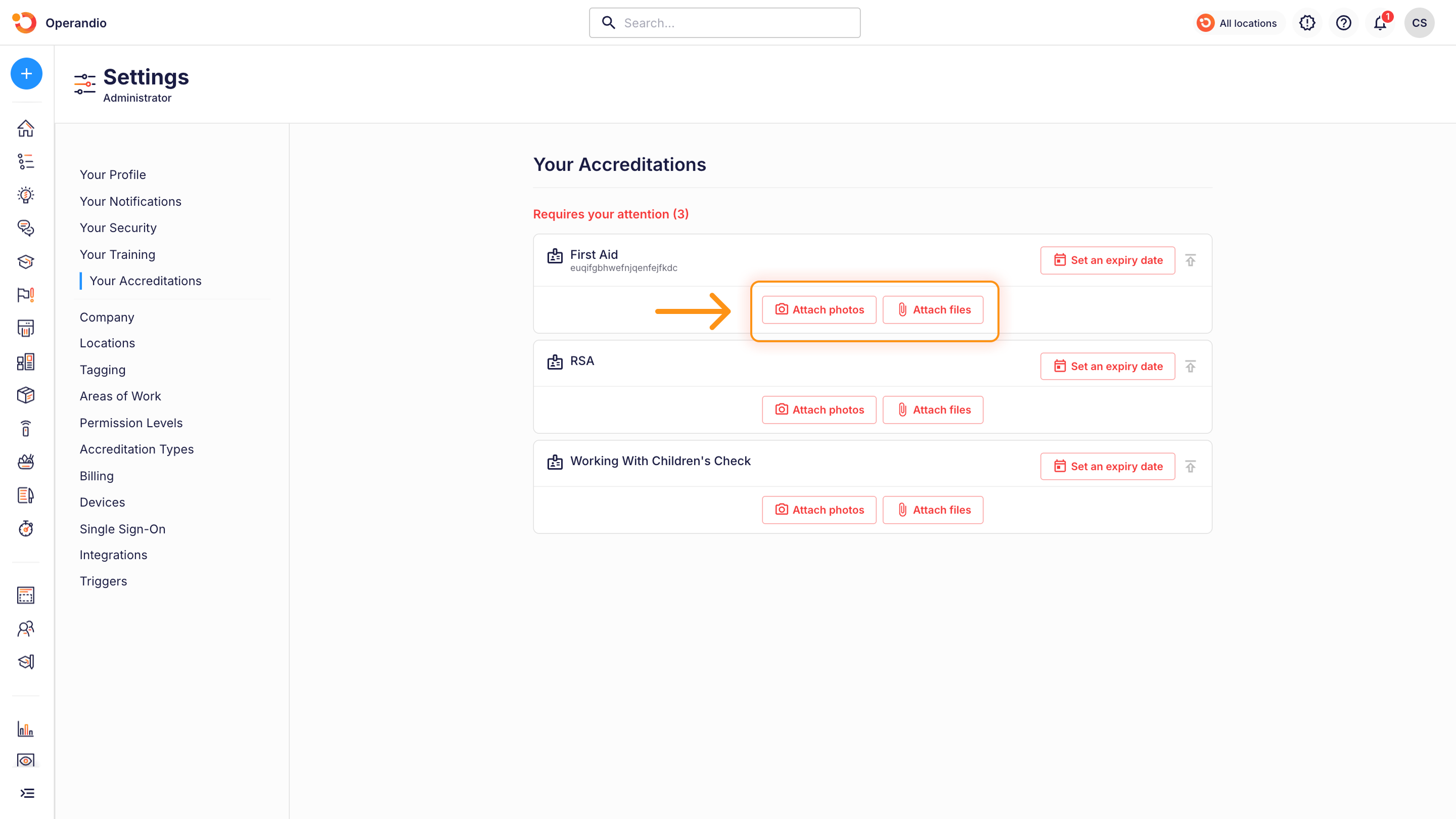
Choose Attach a photo or Attach a file, then select the certificate from your device.
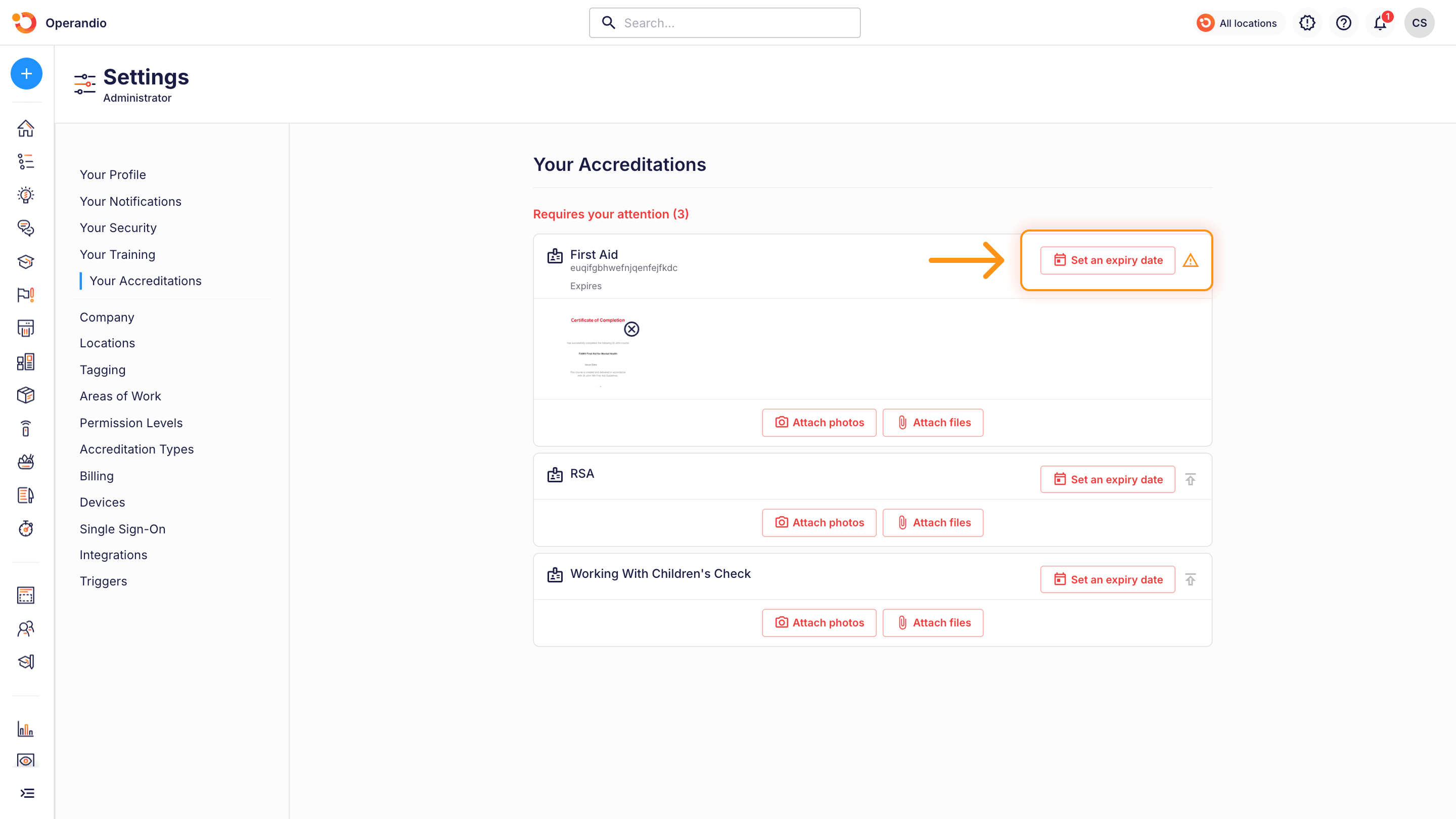
Select Set an expiry date and choose the date shown on your certificate.
The accreditation is now uploaded and will no longer appear as needing attention on your dashboard.
Still showing on your dashboard?
This almost always means the expiry date has not been set. Open the accreditation again and check both the certificate and the expiry date are there.
If your certificate does not have an expiry date, ask your manager which date to use.