Run an Ad Hoc Job
Last updated: October 16, 2026
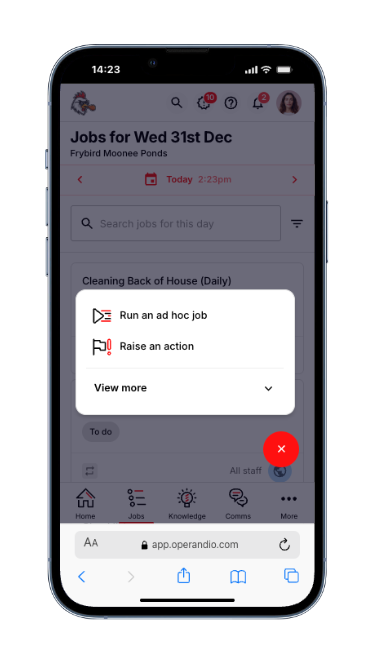
To run an ad hoc job, select the + button (bottom-right on mobile, top-left on desktop and kiosk), choose Run ad hoc job, pick the job you need, and select Run job. This creates a new copy of the job, ready to complete. Ad hoc jobs are completed on demand rather than on a schedule, and you can run them on any device, as long as you have access to the location and area of work the job is assigned to.
When to use ad hoc jobs
Ad hoc jobs suit work that does not happen every day, so it does not need to sit in your active jobs list. For example:
A venue inspection audit carried out at random by head office.
A goods inwards form completed only when the kitchen receives a delivery.
On a mobile device
Open the Operandio mobile app.
Select the + button in the bottom-right corner.
Select Run ad hoc job.
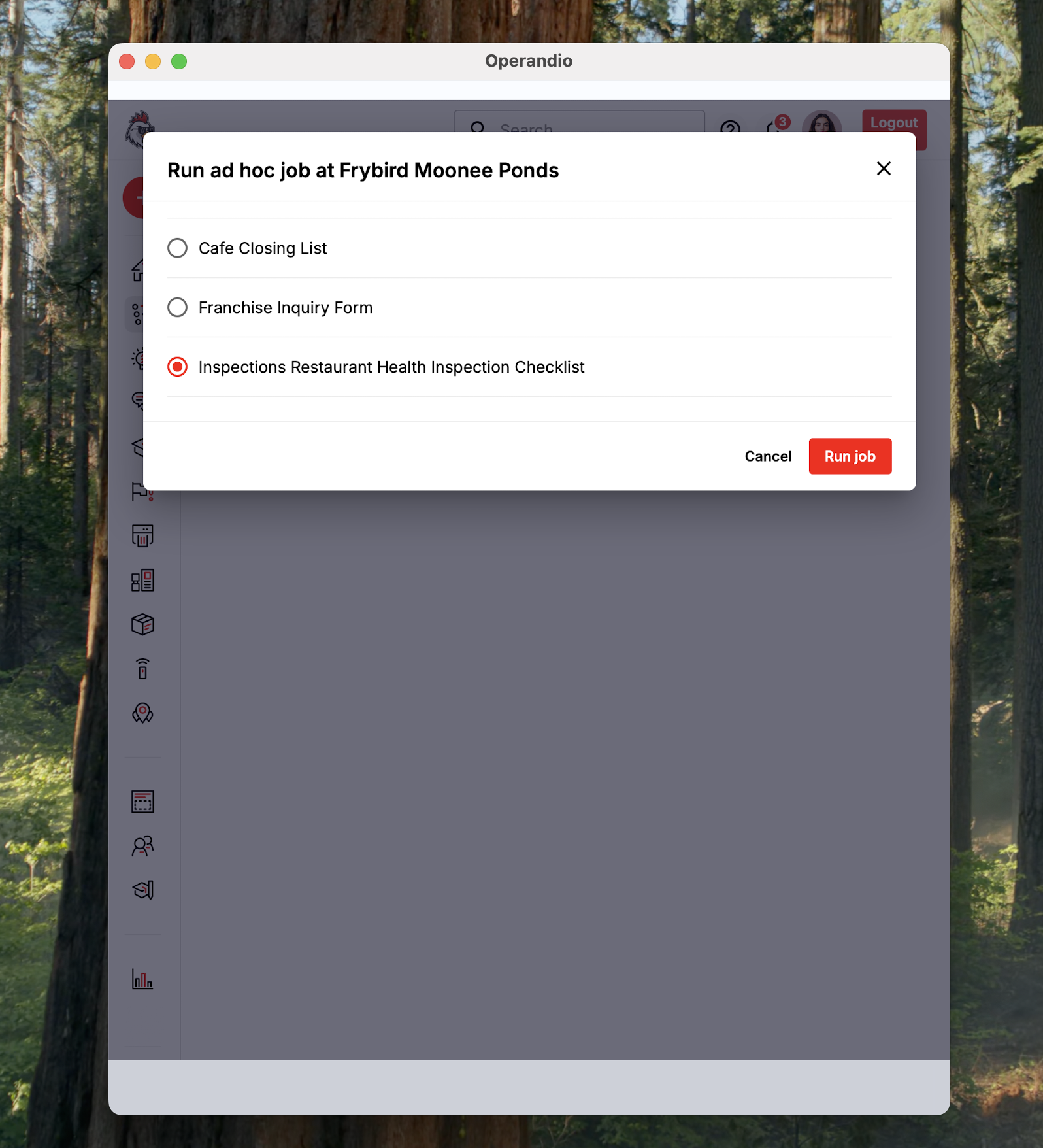
Choose the job you need, then select Run job.
On a kiosk device
Log in to Operandio on the kiosk.
Select Run ad hoc job in the top-right corner, or select the + icon in the top-left corner and then Run ad hoc job.
Choose the job you need, then select Run job.
The kiosk only lists ad hoc jobs assigned to the location it is registered to.
On a desktop or laptop
Log in to Operandio and go to Active jobs.
Select Run ad hoc job in the top-right corner.
Choose the job you need, then select Run job.
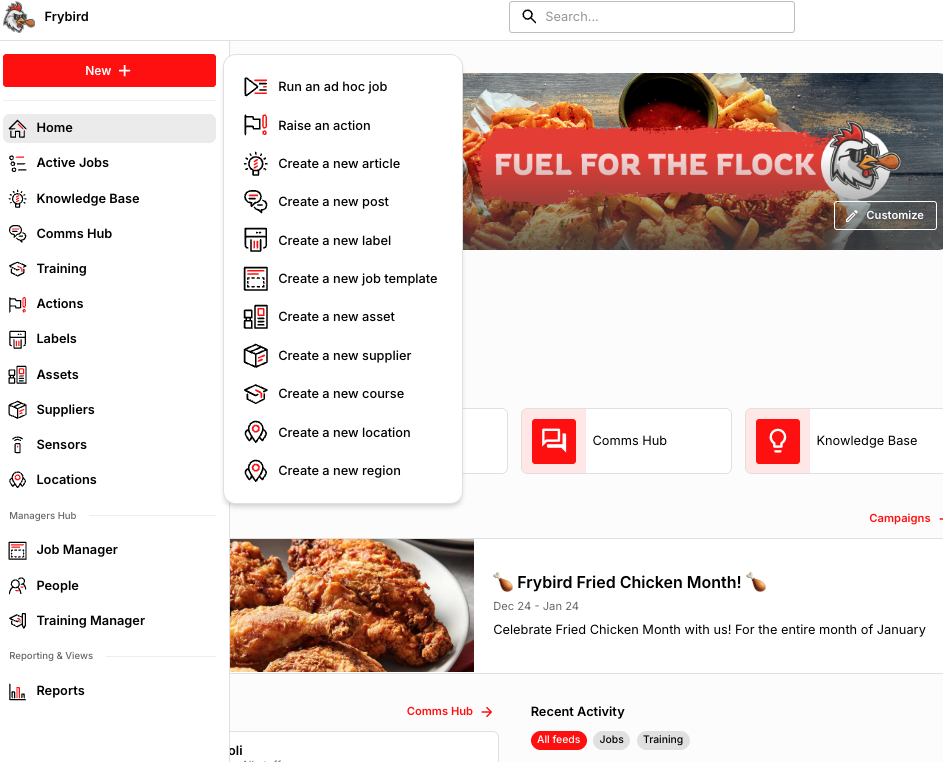
For a shortcut from anywhere in the platform, select the + icon in the top-left corner, then Run ad hoc job.
Optional settings
When you run an ad hoc job, you can give that copy of the job a custom title, such as "Venue audit: follow-up inspection", so it is easy to find later.
You can also set up notifications so specific staff are alerted when an ad hoc job is created or submitted. This is done with triggers. See Creating notifications using triggers.
Can't see the job you need?
Check that the job is set to run ad hoc in its schedule, and that you are assigned to the location and area of work the job belongs to. If either is missing, the job will not appear in your list. Your manager or administrator can update this for you.