Use an NFC tag in a job
Last updated: October 16, 2026
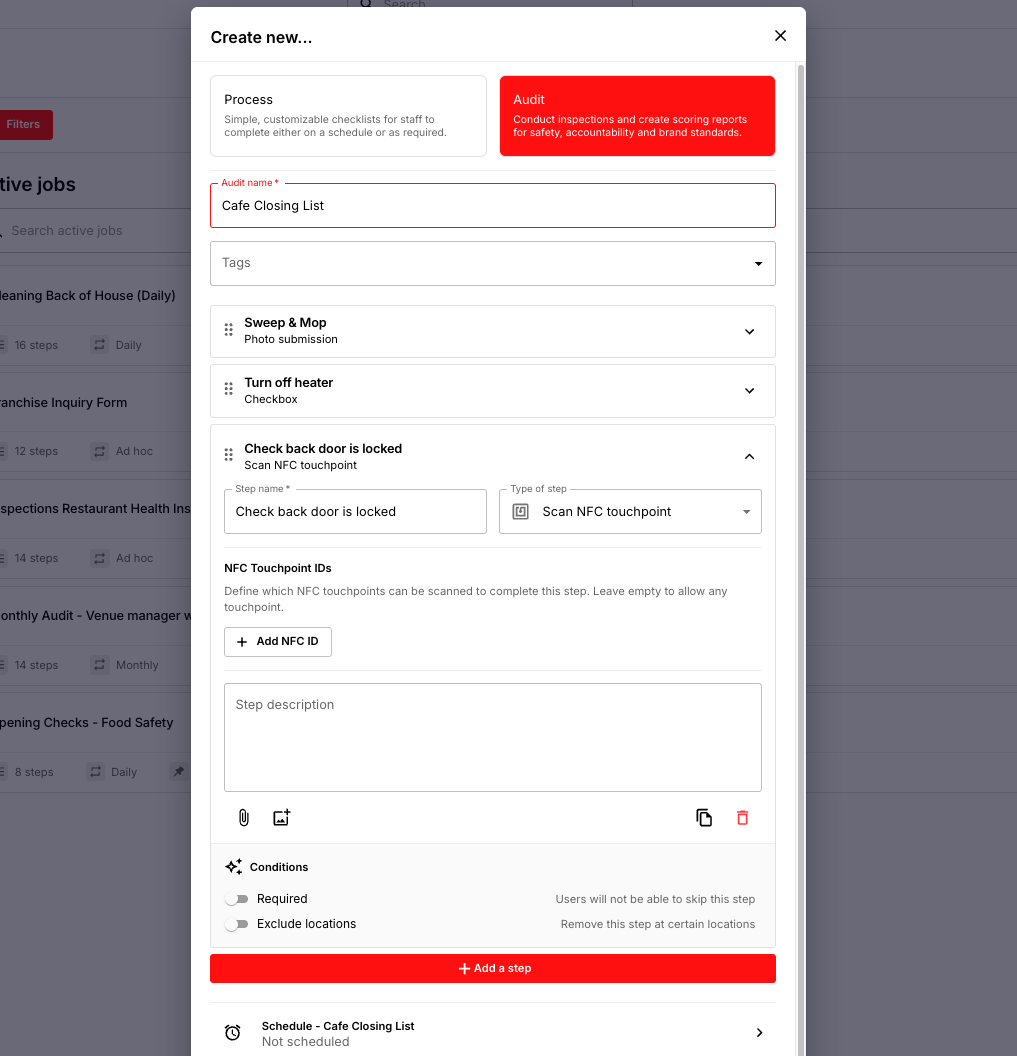
In Job Manager, add a step with the Scan NFC Touchpoint response type. Staff then complete that step by scanning an NFC tag with their phone, which proves they were physically at that spot. To make a step accept only one specific tag, run the job once to capture the tag's NFC ID, then paste that ID into the step using Add NFC ID. Staff need an NFC-enabled phone or tablet.
What NFC tags are for
An NFC tag is a small sticker or token that a phone can read when it's held close. Place tags at doors, equipment, or key areas around your venue, and staff must go to that spot and scan the tag to complete the step. They can't tick it off from somewhere else.
Common uses include:
Confirming doors are locked at close.
Checking safety equipment is in place.
Completing compliance-critical checks at the right location.
Choose how the NFC step works
Option | How it works | Use it when |
|---|---|---|
Any NFC tag | Scanning any tag completes the step. | You want staff to confirm they scanned a tag, and it doesn't matter which one. |
A specific NFC tag | Only one particular tag completes the step. | The step must be done at one exact spot, such as locking the back door. |
Add an NFC step to a job
Go to Job Manager and select Create job.
Select Add step to build out your job, choosing a response type for each step.
For the step that needs a scan, choose the Scan NFC Touchpoint response type.
Finish adding your steps.
Set the schedule, location, and area of work, then save the job.
Staff can now scan any NFC tag to complete that step. To lock the step to one specific tag, continue below.
Require a specific NFC tag
This takes two parts: capturing the tag's NFC ID, then adding that ID to the step. You only need to capture each tag's ID once.
Part 1: Capture the NFC ID
Schedule the job as an ad hoc job so you can run it straight away.
Run the job and work through it.
At the NFC step, scan the tag you want to use.
The NFC ID appears on the step. Copy it.
Part 2: Add the NFC ID to the step
Go back to Job Manager and edit the job.
Open the NFC step, for example "Check back door is locked", and select Add NFC ID.
Paste the ID you copied and save the job.
Staff can now only complete that step by scanning that exact tag. If you changed the schedule to ad hoc in Part 1, set it back to the schedule you need.
What staff see
When staff reach the NFC step, they hold their phone near the tag. Operandio records the scan automatically and the step is marked complete.
If the scan isn't working
Check the phone supports NFC, and on Android that NFC is turned on in the phone's settings.
Remove a thick phone case and hold the phone closer to the tag, moving it slowly until it reads.
If the step requires a specific tag, make sure staff are scanning the right one.