Advanced Printer Management
Our new advanced printer management functionality is currently in preview. Please contact support if you would like it enabled in your account. Requires the label printing module.
Saving printers from a search
Like before, the easiest way to save printers is from your kiosk and mobile devices. The process is much like before, however you will see some new buttons and options in the save printer form.
To save a printer from nearby printer results:
- Log in on an Operandio kiosk or mobile device your printers location.
- Head to the Labels area from the navigation menu.
-
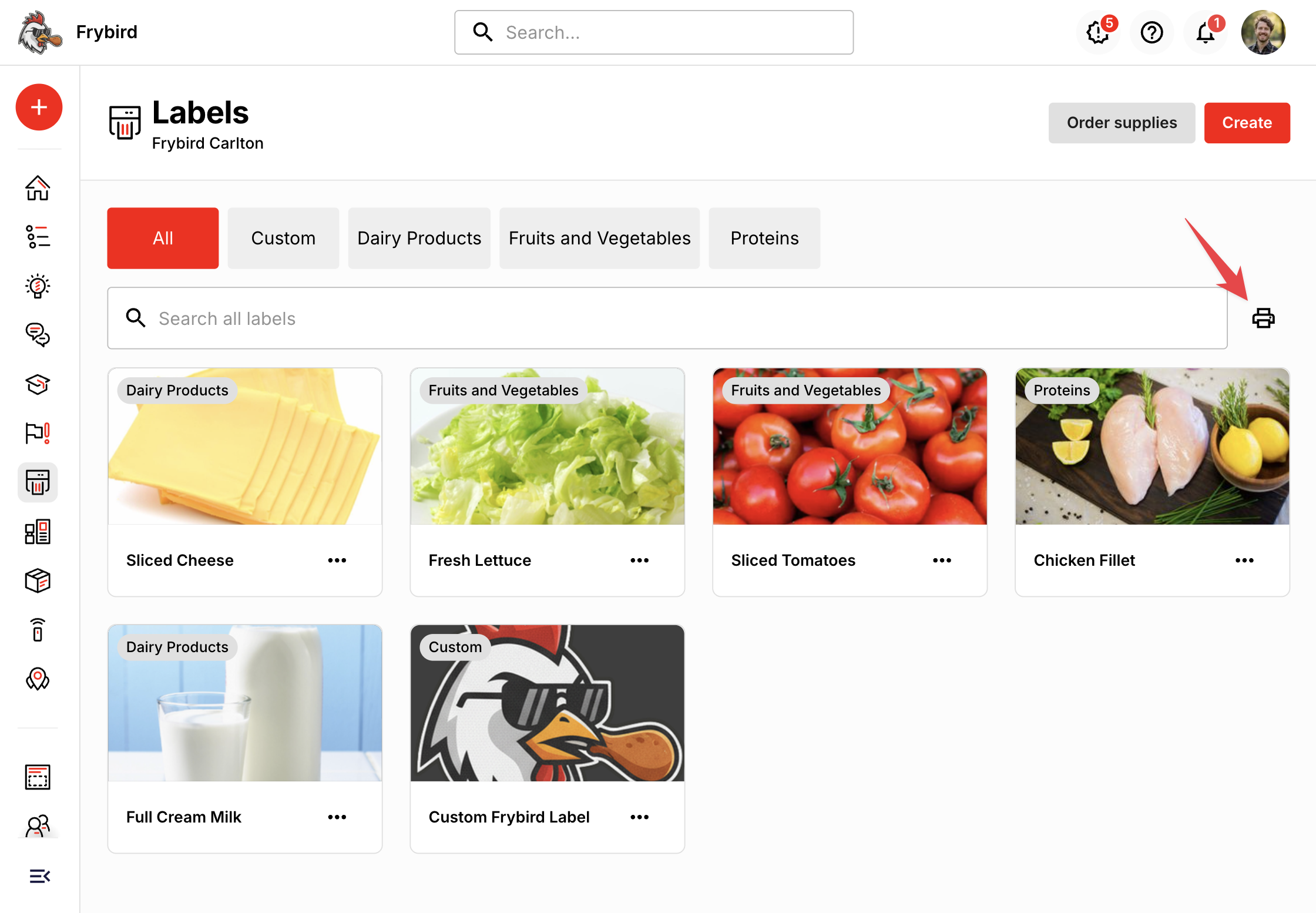
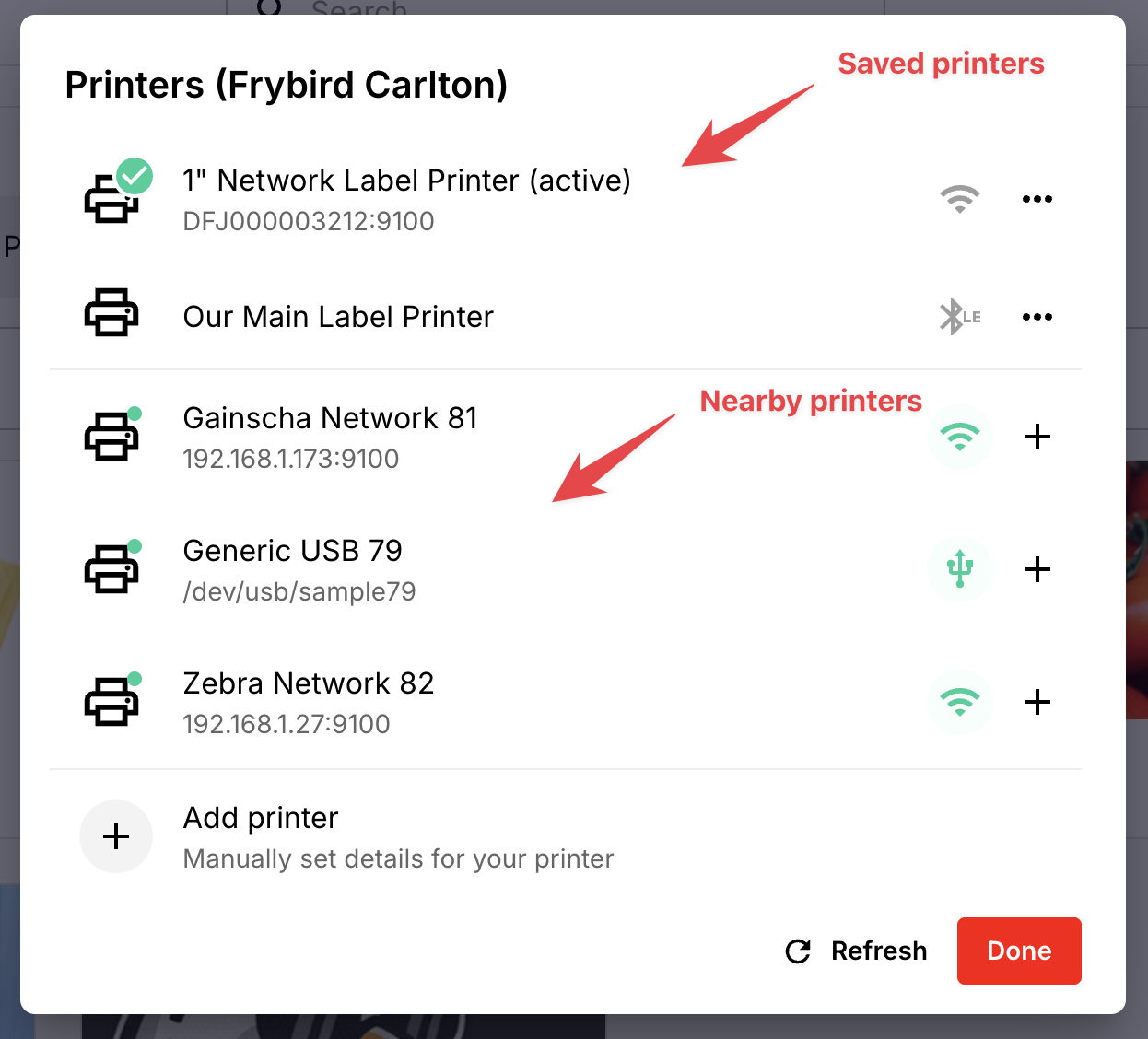
Click on the Manage printers button located on the right-hand side of the label search box (see below) - the printer search dialog will open and Operandio will search for nearby printers.
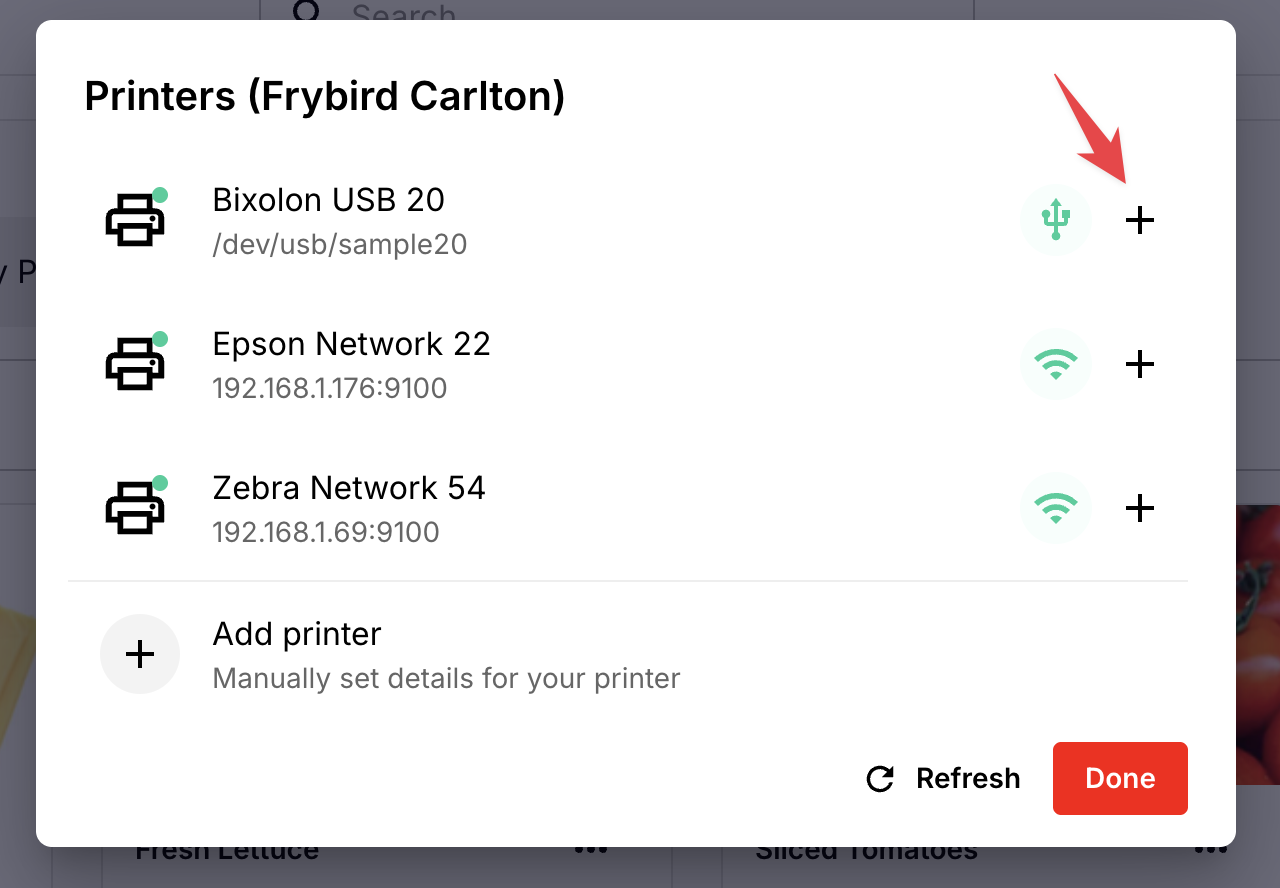
- Wait for the printer you want to save shows up in the results, noting that local network scans can take a few minutes to complete. Also note, any printers you saved with the previous system will show up in the list, with both + and delete options.
-
Now click the + button next to the printer you want to save that's been found - the save printer form will be displayed with connection details filled in.
-
Note the available fields that vary based on the type of printer you are saving. You can give the printer a custom Name in the field provided to help your users recognise the printer.
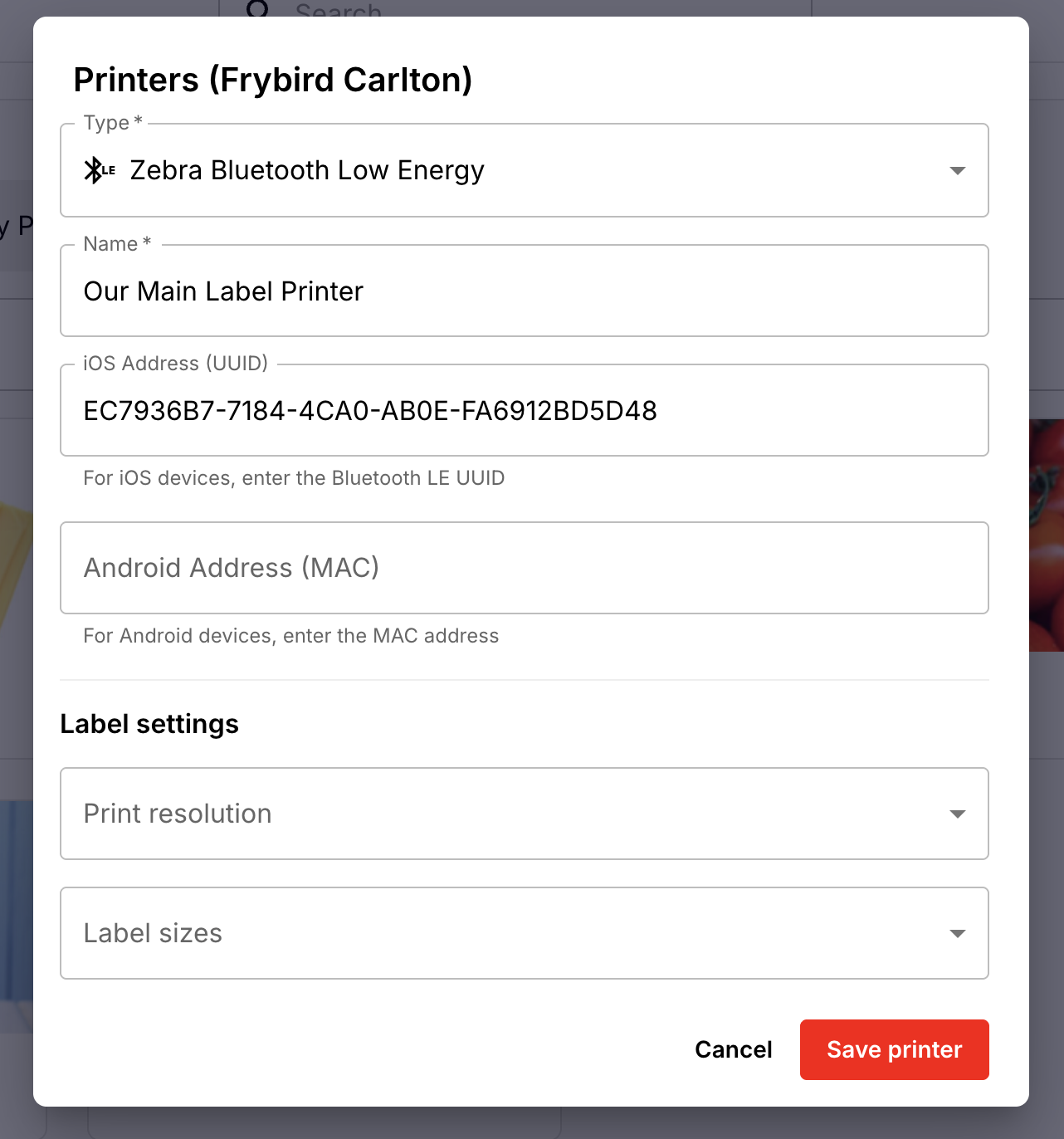
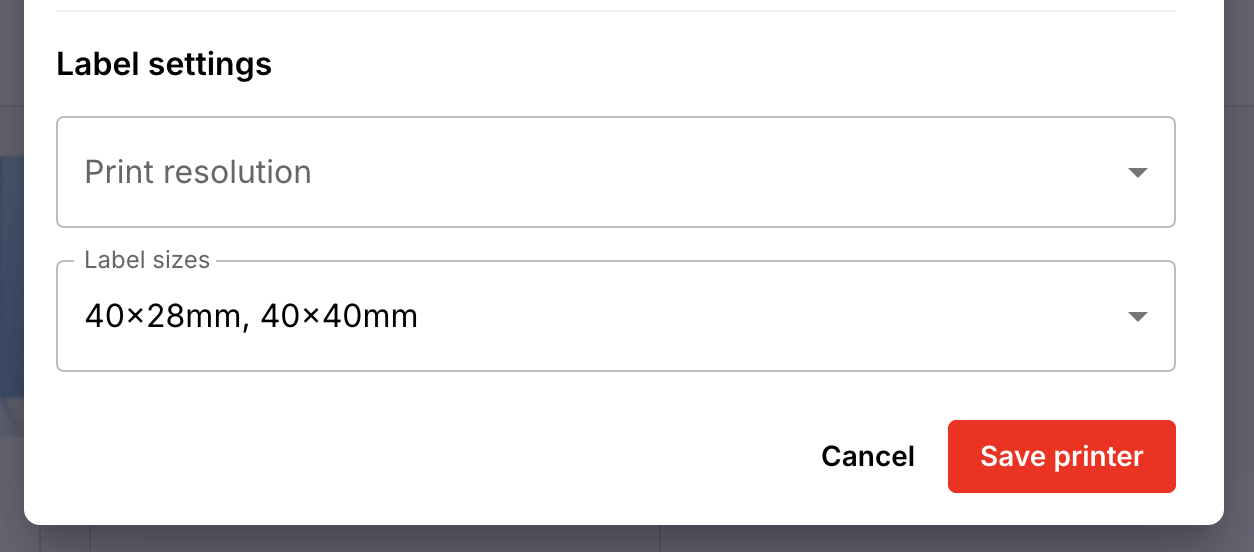
- Note the new Label settings fields. See further details on these fields below, and how they are useful.
- Complete any additional details and click Save printer - your newly saved printers appear at the top of the printer selection screen for your location
Label settings
Here you can set your printers resolution (dots-per-inch), and the label sizes that your printer can print.
Settings label sizes is useful when you have multiple printers, each with different size labels, and label templates set up to suit. When your users go to print a label, Operandio will check the template dimensions, and match it to the most suitable printer.
If you don't specify label sizes for your saved printers, Operandio will just remember the last printer you selected to print labels from.
Editing printers
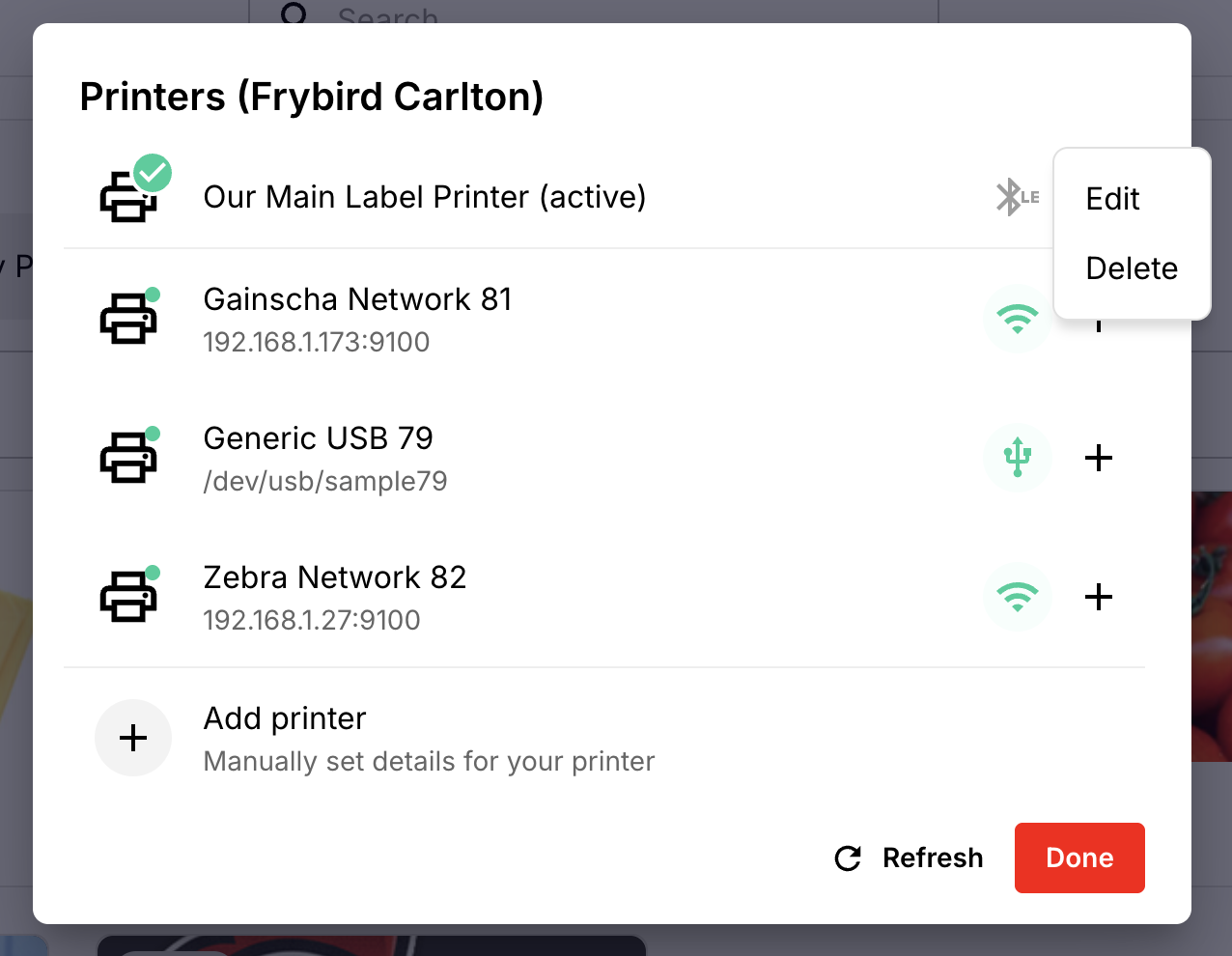
You can also edit, and remove your saved printers. This can also be done remotely without being at your kiosk or mobile device.