Add a New Location
Last updated: October 21, 2026
Quick answer: Select Locations in the left navigation, then Create location and Create new location. Fill in the Details, Opening hours, and Files tabs, then select Save. Next, assign staff to the new location and add it to your existing jobs in Job Manager. Knowledge Base articles, training, and labels set to all locations appear there automatically. Your account is billed per location, and you need the Regional Manager or Full Administrator permission level.
Before you start
Your account is billed per location. A warning appears when you create one. If you have questions about billing, contact your account manager before going ahead.
You need the Regional Manager or Full Administrator permission level to create locations.
Create the location
Log in to Operandio and select Locations in the left navigation.
Select Create location in the top-right corner, then Create new location.
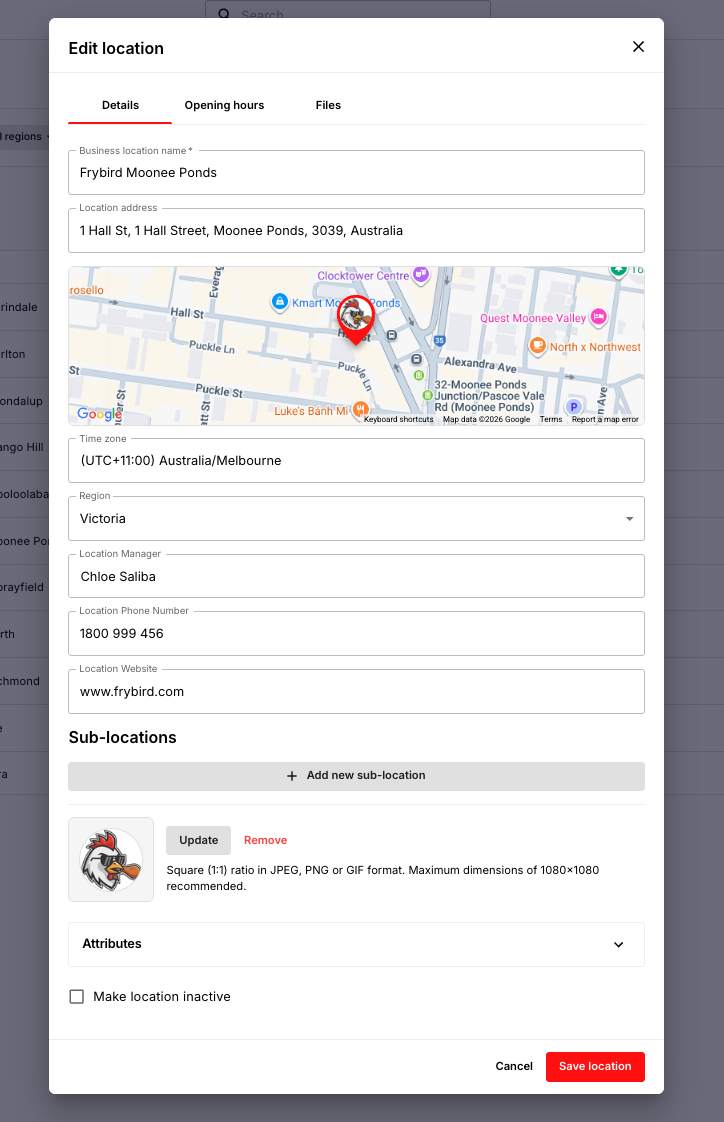
Fill in the Details, Opening hours, and Files tabs. See the table below.
Select Save.
Tab | What to add |
|---|---|
Details | Name, time zone, address, location manager, contact details, and website. You can also assign a region if you use them. |
Opening hours | The days and times the venue is open. These can also be used to time job schedules. |
Files | Documents for the location, such as lease agreements, health and safety documents, or vendor contracts, so staff can find them easily. |
Set up your new location
What you need to set up depends on how your business uses Operandio. Most venues need the following.
Add staff
Invite new staff or edit existing staff, and assign them to the new location. Check each person has the right permission level for their role there.
Add it to your jobs
You don't need to rebuild existing jobs, such as opening and closing checklists. In Job Manager, edit each job and add the new location to its schedule. If the location needs different timings, add a separate schedule to the same job.
If your jobs are assigned using location types or custom fields, set those on the new location and it will receive the matching jobs automatically.
Check your other content
Content set to all locations appears at the new location automatically, with nothing to do:
Knowledge Base articles assigned to all locations.
Training, which isn't location-based, so it's available everywhere.
Labels and label templates assigned to all locations.
Anything assigned to specific locations only will need the new location added to it.