How to View an Asset
The Asset View in Operandio allows staff to see and manage all assets they have access to, depending on their permissions for location and area of work. This view is central for tracking service checks, inspections, and maintenance tasks.
Accessing Your Assets
- The Asset View displays a list of all assets available to you.
- To see details for a specific asset, select the eye icon on the right-hand side of the list.
Asset Details
- The Details section shows information associated with the asset.
These details are created when the asset is set up or any notes that are added.
Reference: For instructions on creating assets, please use this guide: How to use the Asset Manager
Jobs & Maintenance
- The Jobs & Maintenance section lists any jobs where the asset has been selected using the asset response type.
Tip: Use this section to quickly see when service checks or inspections were last completed for each asset.
Reference: For creating or linking jobs to assets, use the guide: How to Link an Asset to a Job

Actions
-
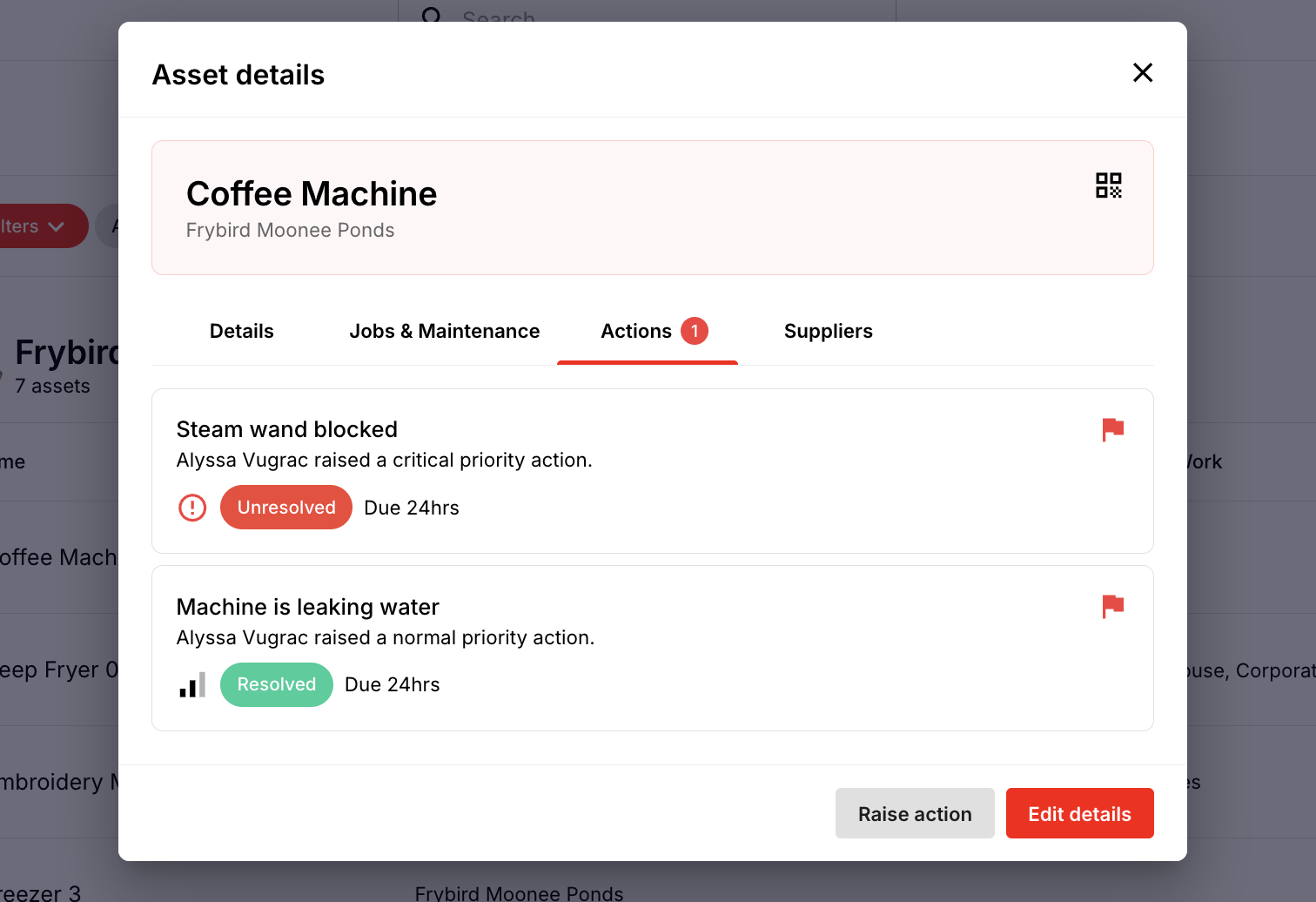
The Actions section displays any actions that have been raised and assigned to the asset.
You can see:
- The overall action
- Status (e.g., unresolved, in progress, resolved)
- This helps track follow-ups or issues identified during service checks.
Reference: For more on raising or managing actions, use the guide: How to Assign Actions to Assets
Suppliers
- The Suppliers section links to any suppliers associated with the asset.
Note: Suppliers must be set up in the system before they can be linked to an asset.
This is useful for managing vendor service checks, maintenance visits, or equipment support.
QR Code
-
A QR code appears at the top right of the asset page.
This QR code can be printed and attached directly to the asset.
Staff can scan the QR code to access:
- Asset details
- Last service or inspection date
- Job and maintenance history
Important: Only staff with access to the platform can scan and view the asset details.