Link an Asset to a Job
Last updated: October 21, 2026
Quick answer: In Job Manager, add a step to your job with the Selection response type, then choose Assets. When staff complete the job, they pick the asset they worked on at that step, such as the coffee machine they inspected. Each completed job is then saved to that asset's history, which you can see on the asset's Jobs & Maintenance tab. Only assets already set up in the Asset Manager can be selected.
Why link assets to jobs
Linking an asset to a job keeps the job and the equipment it relates to in one place. You can see which assets were included in each job, and every asset builds up a history of the inspections, cleaning, and maintenance done on it. Common examples include:
Maintenance checks on a specific piece of equipment.
Cleaning inspections of a particular machine or area.
Calibration tasks for a device that needs calibrating before use.
Safety audits of a specific workstation or tool.
Add an asset step to a job
Before you start, make sure the assets have been created in the Asset Manager. Only existing assets can be selected.
Open Job Manager and select Create job in the top-right corner.
Enter the job details as normal, including the name, tags, and steps.
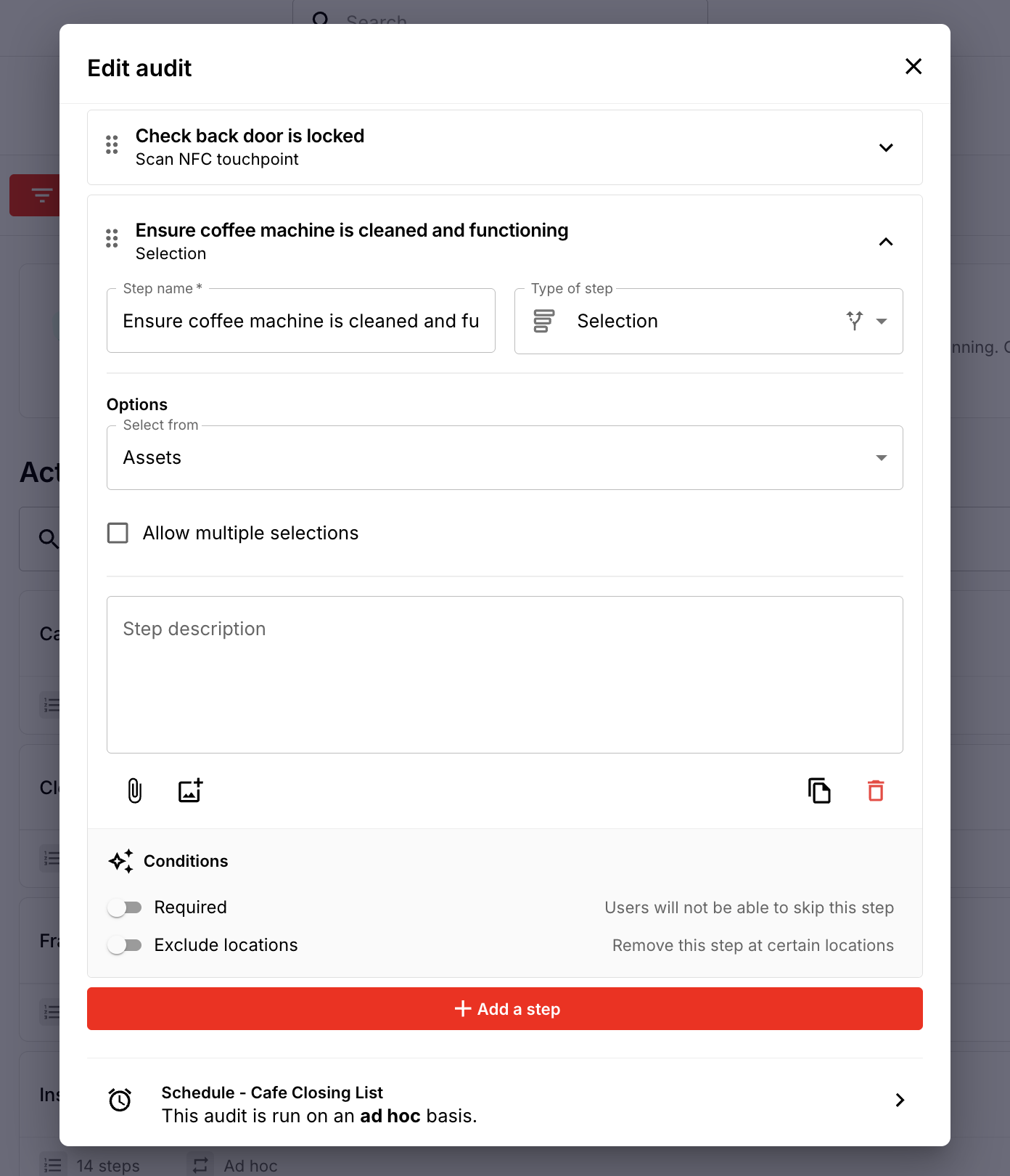
For the step where staff choose the asset, select the Selection response type, then choose Assets.
If staff should only pick one asset, set the step to allow a single selection.
Finish the job as usual by setting the schedule, location, and area of work, then save.
For example, a Maintenance Check job might ask staff to select which coffee machine they're inspecting before they complete the rest of the form.
Complete a job with an asset step
Staff can complete these jobs on any device, including desktop, mobile, or kiosk.
Open the job and work through it as normal.
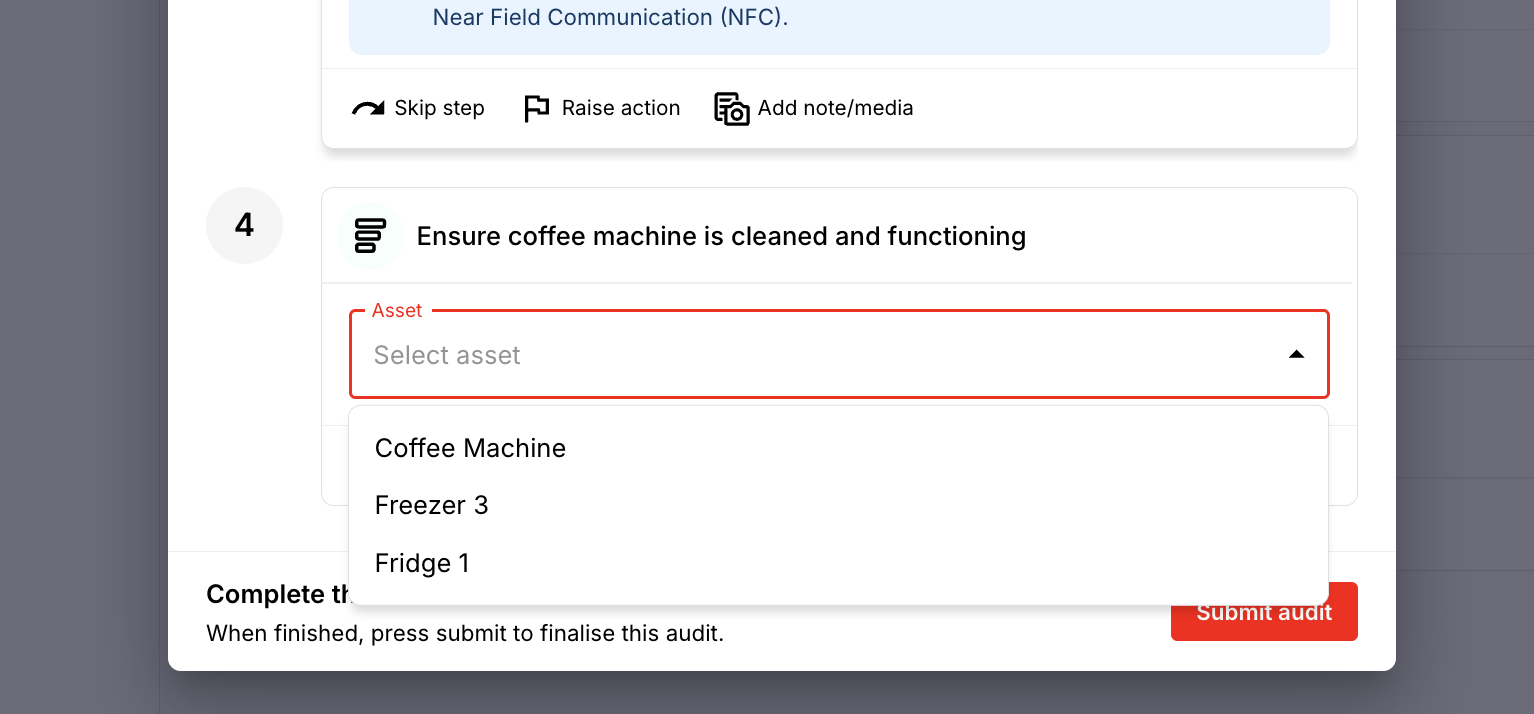
At the asset step, select the asset or assets you worked on. Whether you can pick one or several depends on how the job was set up.
Complete and submit the job.
See an asset's job history
Go to the Asset view.
Select the eye icon on the asset you want to check.
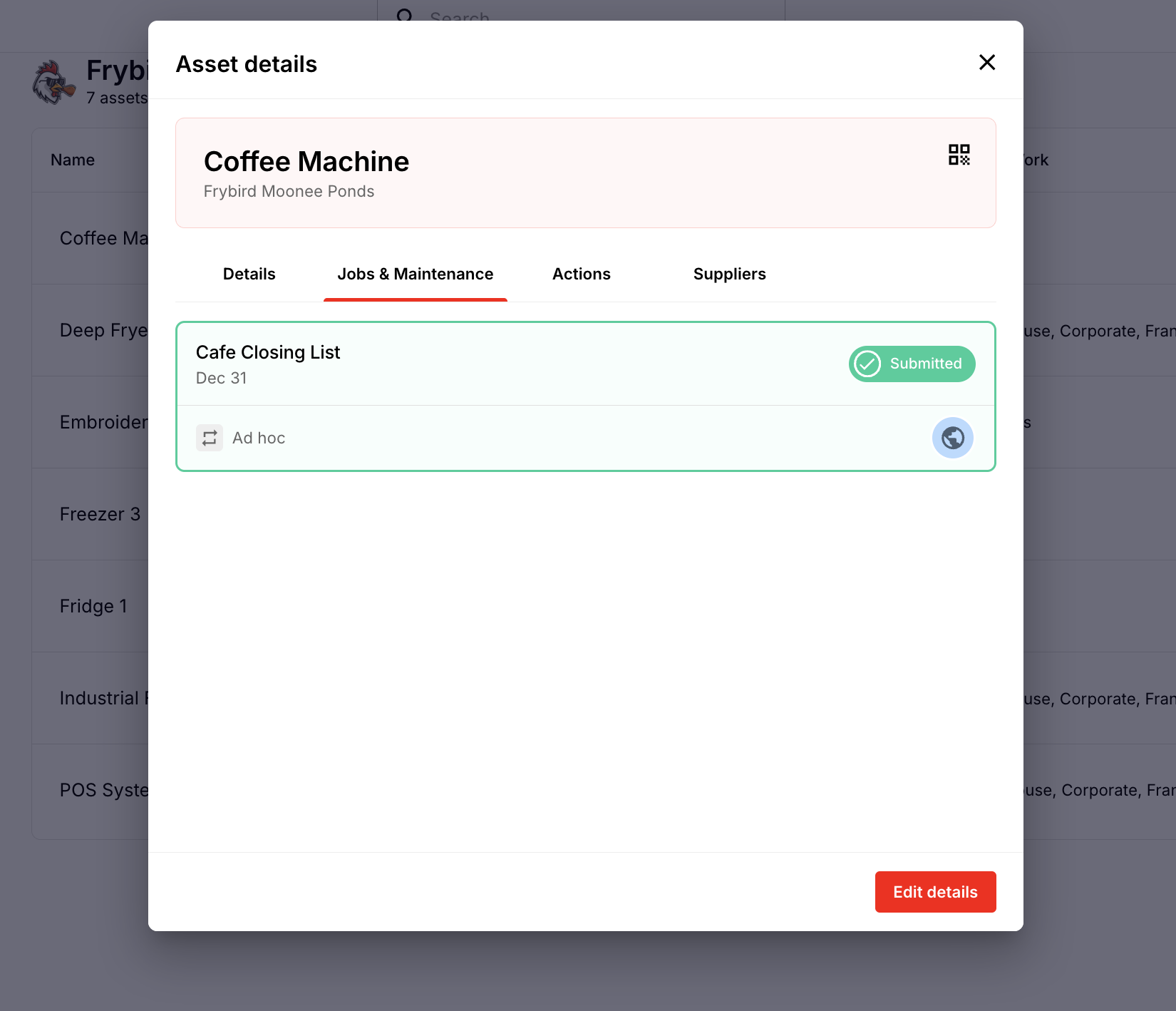
Open the Jobs & Maintenance tab.
You'll see every completed job linked to that asset.
Linking an asset vs scheduling by asset type
This method lets staff choose the asset while they complete the job. If you'd rather a job run automatically for every asset of a certain type, such as a weekly inspection for every belay, schedule it against the asset type instead. See How to use the Asset Manager.