Assign Actions to Assets
Last updated: October 21, 2026
Quick answer: Raise an action from a job step, the Actions page, or the asset itself, select the asset it relates to, then finish and raise it. The action then appears on the asset's Actions tab, along with its status, so you can track repairs and spot recurring problems with the same equipment. You can only select assets at your locations and in your areas of work.
Why link actions to assets
Linking an action to an asset keeps every repair and maintenance request against the equipment it relates to. On each asset you can see:
How many actions have been raised for it.
Which actions are still unresolved.
What needs to be done.
Over time, this also shows which equipment keeps having the same issues, so you can deal with the cause rather than the symptom.
Raise an action against an asset
Start the action from wherever suits you:
From a job: select Raise action on the step where you found the issue.
From the Actions page: select Actions in the left navigation, then Raise action in the top-right corner.
From the asset: open the asset in the Asset view and select Raise action at the bottom of its details page.
Then fill in the action:
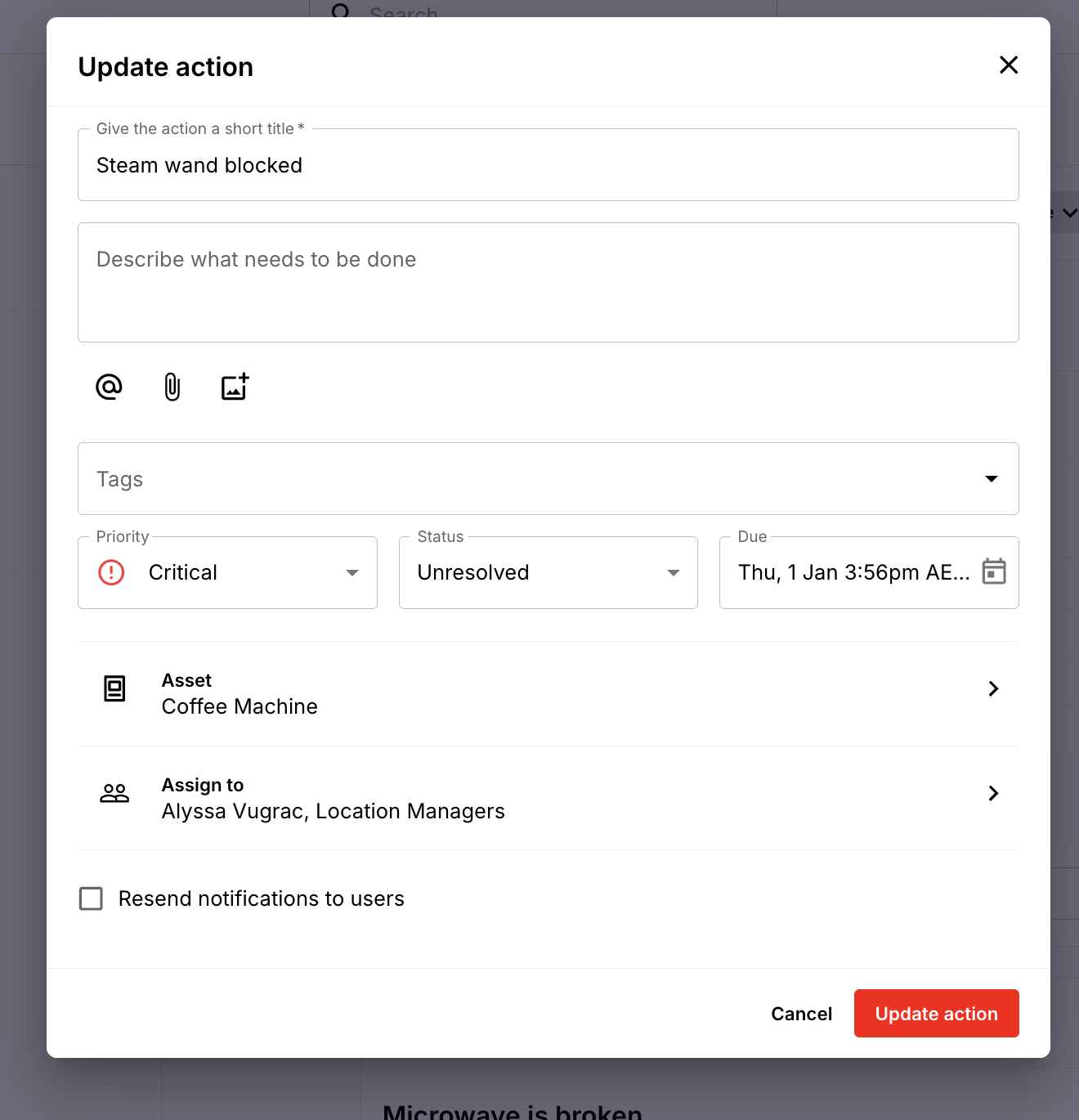
Enter a title and describe the issue, such as the maintenance needed or what's broken.
Add a tag if you use them, and set the priority and due date.
Select the asset the action relates to, if it isn't already selected. Only assets at your locations or in your areas of work are listed.
Choose who the action is assigned to.
Select Raise action.
See the actions on an asset
Go to the Asset view and select the eye icon on the asset.
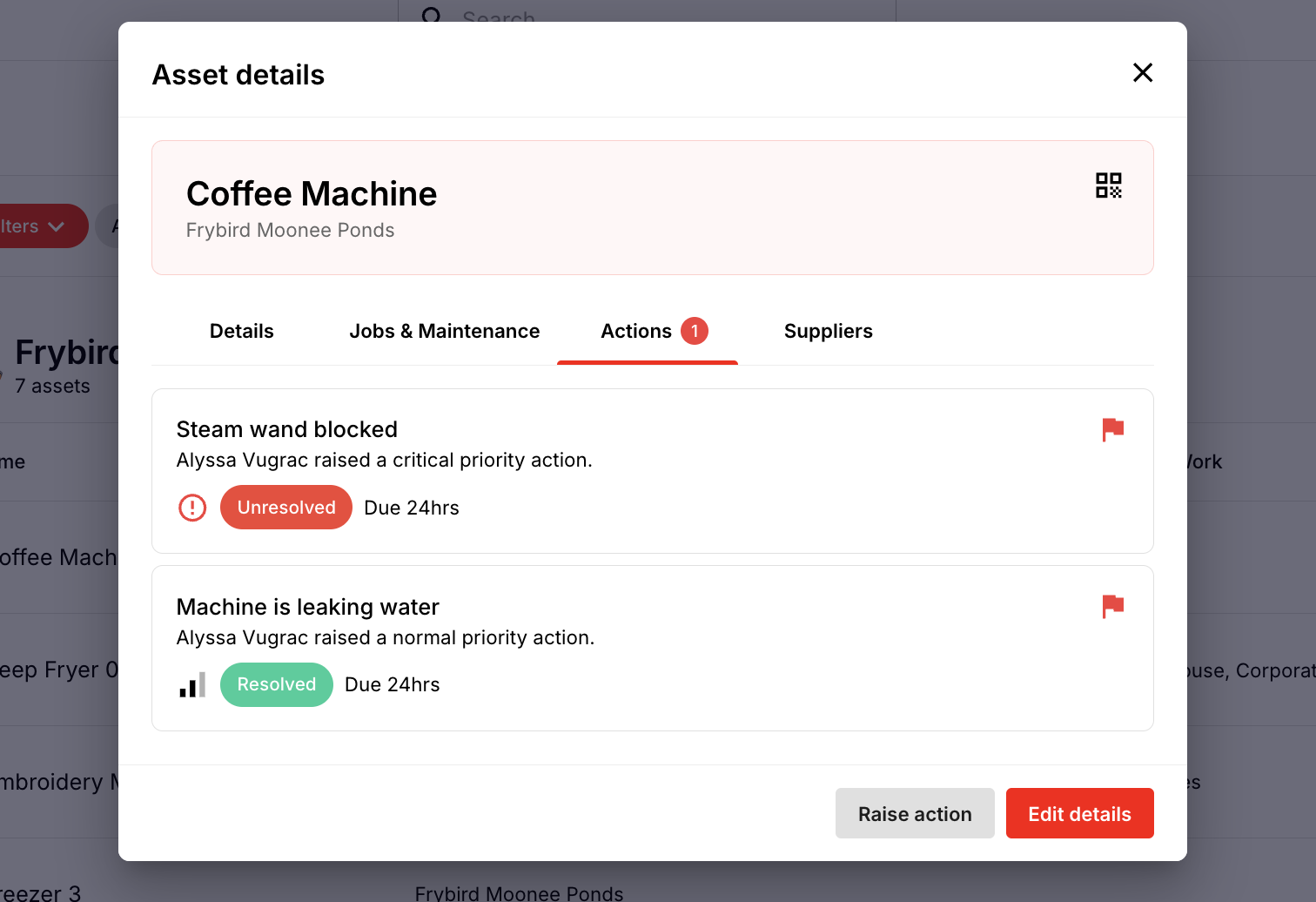
Open the Actions tab.
Each action shows its title, who raised it, its priority, and its status, such as unresolved or resolved. The number on the Actions tab shows how many are still unresolved.
You can also see actions for one or more assets on the Actions page. Select Actions in the left navigation and use the Assets filter.