Change sensor readings between Celsius and Fahrenheit
Last updated: September 28, 2026
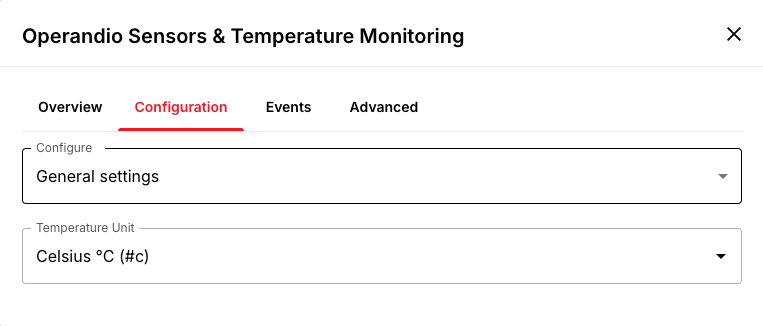
Go to Settings, select Integrations, and open Operandio Sensors & Temperature Monitoring. In Configuration, use the Temperature Unit dropdown to choose Celsius °C or Fahrenheit °F. The setting saves automatically and applies to every sensor across your account. Your historical data is not changed, only how readings display from now on.
Change the temperature unit
Open Settings and select Integrations.
Find Operandio Sensors & Temperature Monitoring and click into its settings.
Go to the Configuration tab.
Ensure General settings is selected under Configure (refer to photo).
Open the Temperature Unit dropdown and choose Celsius °C or Fahrenheit °F.
The setting updates automatically once you make your selection. Sensor readings will then display in the unit you chose.
What to know before changing it
The setting applies to the sensor integration as a whole, so it changes readings for every location and every user, not just yours.
Historical sensor data is not rewritten. The change affects how readings are displayed going forward.
You need permission to update integrations. If you cannot see or change the setting, contact an Operandio administrator.
You can switch back at any time using the same dropdown.